DPP basicsCompliancePublished · 12 min read
How to add a Digital Product Passport to your Shopify store
Step-by-step guide to adding a digital product passport to your Shopify store. Connect your catalogue, enrich products with compliance data, and publish scannable QR codes.
Written by Vincent Ghilione, Founder, Wetrack
If you run a fashion brand on Shopify, adding a digital product passport to your store is simpler than you might expect, and if you sell into Europe, it will soon be mandatory under the EU Ecodesign for Sustainable Products Regulation (ESPR).
The good news: Shopify is the easiest starting point for DPP implementation. Your product data already lives in a structured format, titles, descriptions, images, variants, prices.
A DPP platform that connects to Shopify can pull all of that in automatically, so you’re not starting from scratch.
This guide walks you through the full process: from connecting your store to a DPP platform, to enriching your products with compliance data, to publishing live passports with scannable QR codes. If you’ve been putting this off because it sounded complicated, you’ll be surprised how straightforward it actually is. (New to DPPs entirely? Start with our step-by-step guide to creating your first passport.)
Table of Contents
- Why Shopify makes DPP easier (not harder)
- Step 1: Choose a DPP platform that connects to Shopify
- Step 2: Import your Shopify product catalogue
- Step 3: Enrich your products with DPP data
- Step 4: Customise your passport page design
- Step 5: Publish passports and generate QR codes
- Step 6: Add a transparency widget to your product pages (optional but powerful)
- Step 7: Keep your data in sync
- What your Shopify store looks like with a digital product passport
- Frequently asked questions
Why Shopify makes DPP easier (not harder)
Many brand owners assume that adding DPP compliance to their e-commerce setup will be a technical nightmare. With Shopify, it’s closer to adding a new app.
Here’s why. Shopify already stores structured product data, your product titles, descriptions, images, variants (size, colour), and SKUs. A DPP platform that integrates with Shopify can import this data in one click, meaning you don’t need to re-enter product names, re-upload images, or manually create variant structures. You’re importing a foundation, then adding the compliance-specific data on top.
Compare this to a brand that sells exclusively through wholesale with no digital catalogue. They’d need to build their entire product database from scratch before even thinking about DPP fields. You’re already halfway there.
The other advantage: Shopify’s app ecosystem means you can add DPP functionality without changing your theme, rebuilding your site, or hiring a developer. You connect a platform, import your products, add compliance data, and publish.
Step 1: Choose a DPP platform that connects to Shopify
Not every DPP platform offers Shopify integration, and the ones that do vary significantly in approach. Some are built as Shopify apps that live inside your Shopify admin. Others are standalone platforms that connect to Shopify via API to import your product catalogue.
Both approaches work, but there are trade-offs worth understanding.
Shopify-native apps (installed from the Shopify App Store) are convenient because you manage everything from one admin panel. The downside is that some are limited in DPP functionality, they may not support all the data fields you’ll eventually need, or they may lock your data inside the Shopify ecosystem.
Standalone DPP platforms with Shopify import offer more robust compliance features, detailed supply chain management, LCA integration, multi-brand support, and use your Shopify store as a data source rather than a container. The trade-off is a separate login and dashboard.
When evaluating options, ask these questions. Does it import my full Shopify catalogue (products, variants, images) automatically? Does it support GS1-compliant identifiers and Digital Link URLs? Can I customise the passport page with my brand colours and logo? Does it use open data standards so my data is portable? What’s the pricing model, per passport, flat fee, or usage-based? We’ve put together a DPP platform evaluation checklist that covers these criteria in detail.
Step 2: Import your Shopify product catalogue
Once you’ve chosen a platform and connected your Shopify store, the import process is typically a single click. The platform reads your Shopify product data via the Shopify Admin API and creates a corresponding entry for each product and variant.
What gets imported automatically will vary by platform, but typically includes product title, product description, product images, variant information (size, colour, SKU), product type and tags, and price (useful for internal reference, not displayed in the DPP).
What won’t be imported, because Shopify doesn’t store it, is the compliance-specific data that the DPP requires. Material composition with exact percentages, manufacturing location details, SVHC compliance statements, care instructions in structured format, environmental data, and supplier information all need to be added manually.
This is the critical point: the Shopify import saves you the setup work, but it doesn’t save you the compliance work. You still need to gather and enter the data described in our DPP data requirements guide. The import just means you’re building on a foundation rather than starting from zero.
After import, review your product list in the DPP platform. Check that all products and variants came through correctly. Occasionally, Shopify data formatting quirks (inconsistent variant naming, products with no images, draft products) cause minor import issues that are easy to fix manually.
Step 3: Enrich your products with DPP data
This is where the real work happens, and where the previous articles in this guide series become your roadmap.
For each product (or at minimum, for your pilot batch of 3,5 products), you need to add the following data. We’ve linked to the detailed guides for each category.
Material composition. Add the exact fibre breakdown for each component of the garment. If you use the same fabric across multiple products, most platforms let you create a material library entry once and link it to every product that uses it. See our data requirements guide for exactly what format to use.
Manufacturing details. Add your Tier 1 manufacturer (garment assembly factory) and any Tier 2 suppliers (fabric mills, dye houses) you’ve identified. Include country, city, and facility name at minimum. See our supply chain mapping guide for how to collect this data.
Care instructions. Enter structured care data, washing temperature, drying method, ironing, bleaching, and professional care. Most platforms offer standardised care instruction fields that match international symbols.
SVHC compliance statement. Upload or record your supplier’s REACH compliance declaration. If your product contains no substances of concern above the 0.1% threshold, indicate that clearly.
Product identification (GTIN). Enter your GS1 GTIN for each variant. If you don’t have GTINs yet, our regulation guide explains how to register with GS1.
Certifications. If your product carries GOTS, OEKO-TEX, Bluesign, or other certifications, upload the certificate and link it to the relevant products.
Environmental data (optional). If you have carbon footprint data, LCA results, or PEF scores, add them. If not, don’t let this block your progress, add end-of-life guidance at minimum (can this product be recycled? How should the customer dispose of it?).
A practical workflow that works well: pick your five best-selling products. Spend one morning entering the data for each, using your tech packs and supplier spec sheets as sources. By lunchtime, you’ll have five products with complete compliance profiles.
For the regulatory background, see our DPP regulation guide.
Step 4: Customise your passport page design
Before you publish, make sure the public-facing passport page looks like your brand, not a generic compliance document.
Most DPP platforms offer some level of customisation. At minimum, you should be able to upload your logo, set your brand’s primary and accent colours, choose which data sections appear and in what order, and add optional brand sections (about your manufacturing philosophy, your sustainability commitments, or your care recommendations).
The design step matters more than people think. A well-designed passport page is a trust-building brand moment. A poorly designed one, raw data dumped on a white background, is a missed opportunity. Your customer is choosing to engage with your product at a deeper level by scanning that QR code. Reward that choice with an experience that feels intentional and on-brand.
Preview the passport on your phone before publishing. That’s how most customers will see it (scanning a QR code opens the page in a mobile browser). Make sure text is readable, images load correctly, and the page feels clean at mobile width.
Step 5: Publish passports and generate QR codes
With your data entered and your design set, you’re ready to publish. In most platforms, this is literally a “Publish” button per product (or a bulk-publish option for your entire catalogue).
Publishing does two things. It creates a public passport page at a unique URL, typically a GS1 Digital Link URL that follows international standards. And it generates a QR code (usually in SVG format) that resolves to that URL.
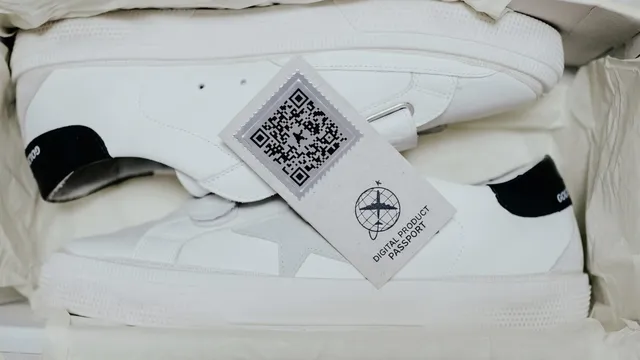
Download the QR codes for your published products. You’ll need these for physical attachment to your garments. Common options include printing them on hang tags (most visible at point of purchase), adding them to care labels (permanent, stays with the garment for life), including them on packaging inserts, or printing them on branded postcards included with online orders.
For your first batch, hang tags are the easiest option. You can print QR codes on label stock with an ordinary label printer, or add them to your next hang tag print run with your supplier.
Test every single QR code. Scan it with your phone camera. Confirm it opens the correct passport page. Check on both iPhone and Android if possible. A broken QR code on a hang tag is worse than no QR code at all.
Step 6: Add a transparency widget to your product pages (optional but powerful)
Some DPP platforms offer an embeddable widget, a small block of DPP data that can appear directly on your Shopify product pages. This means customers browsing your website can see material composition, manufacturing details, and care instructions without ever scanning a QR code.
Adding a widget to your Shopify store typically involves pasting a snippet of code into your product page template (via Shopify’s theme editor) or installing a companion Shopify app. The implementation is usually straightforward and doesn’t require developer support.
The value of the widget is that it brings transparency to the point of purchase. A customer who sees verified material and manufacturing data while deciding whether to buy is more likely to convert, especially if your competitors’ product pages offer nothing more than a marketing description.
Step 7: Keep your data in sync
Your Shopify catalogue isn’t static. You add new products, retire old ones, change descriptions, and update pricing. Your DPP data needs to stay in sync.
Most DPP platforms that integrate with Shopify offer some form of synchronisation, either automatic (new Shopify products are automatically created in the DPP platform) or manual (you trigger an import when you want to update). Understand which model your platform uses and build a workflow around it.
When you add a new product to your Shopify store, make it a habit to immediately open your DPP platform and add the compliance data. If you do this at the point of product creation rather than as a retroactive batch process, it takes five minutes per product and never becomes a backlog.
When you change a supplier or a fabric for an existing product, update the DPP too. The passport is a living document, it should always reflect the current reality of the product, not a frozen snapshot from the day you first published it.
What your Shopify store looks like with a digital product passport
Once you’ve completed the process, here’s what your customer experience looks like.
A customer visits your product page on Shopify. If you’ve added a transparency widget, they see material and manufacturing data right there alongside the product photos and description. They decide to buy.
The product arrives with a QR code on the hang tag. The customer scans it out of curiosity. A beautifully designed passport page opens on their phone, showing them everything about the garment, what it’s made of, where it was made, how to care for it, and what to do with it at end of life. It’s branded, it’s clean, and it feels intentional.
That customer now has a higher level of trust in your brand than any Instagram ad or marketing email could have built. And when someone asks them “where did you get that?”, the answer isn’t just the product, it’s the story behind it, verified and scannable.
Scan or click to see what this experience looks like with a live sample DPP.

Ready to connect your Shopify store?
Frequently asked questions
Do I need a Shopify Plus plan for DPP integration?
No. Most DPP platforms that integrate with Shopify work with all Shopify plans, including Basic Shopify. The integration uses Shopify’s standard API, which is available on all plan tiers. Shopify Plus may offer additional customisation options for the storefront widget, but it’s not required for core DPP functionality.
Will the DPP platform slow down my Shopify store?
No. The DPP platform operates independently from your Shopify storefront. Your product data is imported via API, and the passport pages are hosted on the DPP platform’s servers, not on your Shopify store. If you add a transparency widget to your product pages, it loads asynchronously and shouldn’t affect page speed. That said, always test your page speed after adding any new widget or script.
I have 200 products in Shopify. Do I need to create passports for all of them?
Not immediately. Start with a pilot of 3,5 products, learn the process, then expand. When you’re ready to scale, most platforms support bulk data entry or spreadsheet imports. The Shopify integration handles the product import automatically, the time-consuming part is entering the compliance data (materials, suppliers, certifications), which needs to be done per product regardless of your catalogue size.
Can I use my existing Shopify barcode/SKU as my DPP identifier?
Shopify SKUs are internal identifiers, they’re useful for inventory management but don’t meet the GS1 Digital Link standard required for DPP compliance. You’ll need GS1 GTINs as the official product identifiers in your DPP. However, most platforms let you map your Shopify SKUs to GTINs, so you can maintain both systems without confusion.
What happens if I change my Shopify theme?
Your DPP data lives in the DPP platform, not in your Shopify theme. Changing themes won’t affect your published passports or QR codes. If you’ve added a transparency widget to your product pages, you may need to re-add the widget code to your new theme’s product template, but the underlying data remains intact.
I also sell on WooCommerce / Etsy / my own website. Can I use the same DPP?
Yes. The DPP is linked to the product (via GTIN), not to the sales channel. A passport published for your “Classic T-shirt” works regardless of whether the customer found it on Shopify, Etsy, or a wholesale partner’s shelf. Some DPP platforms offer integrations with multiple e-commerce systems. Others work with Shopify as the primary import source, and you simply use the same QR codes and passport URLs across all your sales channels.
This guide reflects the available integrations and regulatory landscape as of April 2026. Stay informed.
Next step
See what a passport would already contain for one of your products.
Free, one product, from your public data. You get a dated report and a sample passport you can open.
Vincent builds Wetrack and its sister product Weloop from Carouge, Switzerland. 25 years of building digital products for brands, now spent on product data, passports and what the ESPR actually asks of a fashion brand.
LinkedIn (opens in a new tab)Reviewed for accuracy by the Wetrack team. Regulatory dates come from official EU sources and are re-checked when the rules move; the date at the top of this page tells you when. This guide is information, not legal advice.